


Members-only perks


First Trip in a Tesla
Learn everything you need to know about driving and charging your Tesla rental. And remember:
- 3 options for recharging your EV: Learn about the ways you can recharge your EV — including letting Hertz do it! Learn more >
- 80% Rule: EV batteries work best between 80-20%, so we strive to have all our EVs at 80% at pick-up.

Lock and unlock
Unlock the EV by placing your Tesla keycard just below the circle by the driver’s window.

Open the door
- Push the right side of the door handle with your thumb. Grab the ejected handle and pull to open.
- To open the door from the inside, press the button on top of the armrest handle.

Connect your phone via the Tesla app
- To speed things up, download the Tesla app before picking up your vehicle.
- Scan the QR code on the bottom left corner of the Tesla touchscreen and connect via bluetooth.
- Now your phone can be used as the Tesla key for the duration of your rental. (However, keep the physical key on hand as a backup.)
- You’ll be able to monitor the Tesla’s battery level and charging status via the app.

Turn the Tesla on and off
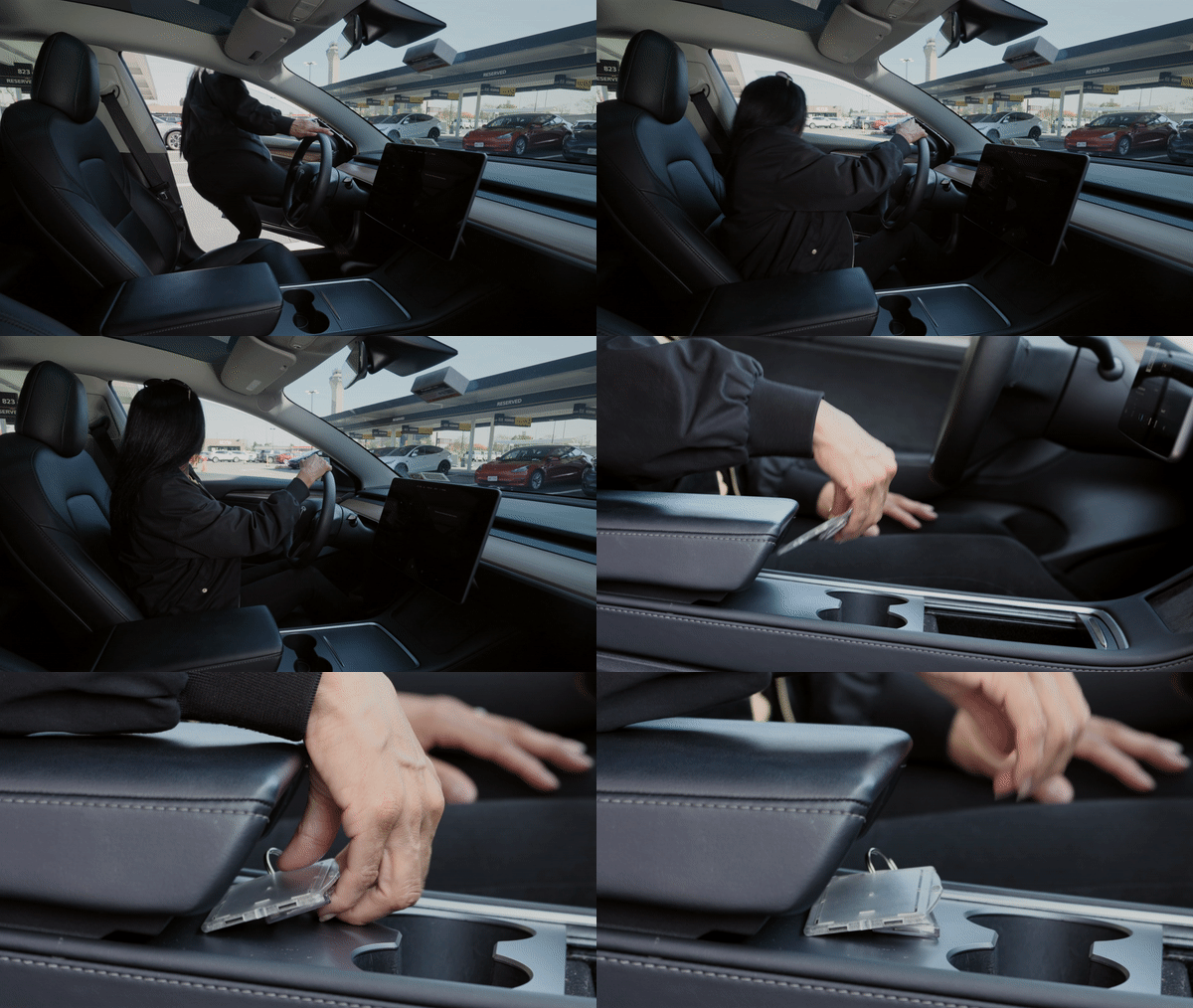
- Turn on the car by placing the keycard in the center console.
- The key card can be moved once the car is on.
- The car turns off automatically when you exit the vehicle and take the key with you.
Adjust mirrors and wipers on touchscreen
- A lot of common dashboard features are controlled via the Tesla touchscreen, such as navigation and climate control.
- The lights and wipers are set to automatically react to environmental cues, such as overcast or rainy conditions.
- MIRRORS: Tap the car icon in the bottom left corner of the touchscreen. Tap Mirrors and select Left or right. Adjust using left scrollball on the steering wheel.
- WIPERS: Tap the car icon in the bottom right corner of the touchscreen, see the Wiper icon. Select I, II, III, or Auto.

Put the Tesla into gear
- Use the gear-selector stalk (located to the right side of the steering wheel) to shift the car into drive. You can see the gear display on your touchscreen.
- Push the stalk up for reverse, down for drive, and press the button on the end of the stalk for park.

Teslas accelerate quickly! Press pedal gently
- Unlike a traditional car, a Tesla offers full power instantly so take care with the accelerator pedal.

And brake automatically! Lift foot off pedal to begin braking
- This one-pedal driving recharges the battery but takes a little getting used to.

Find nearby Superchargers
- Want to find charging stations before your trip? Try a trip planner like A Better Routeplanner.
- When you’re on-the-go, use the in-car touchscreen and tap the Navigate bar, and then tap Charging.
- Or tap the car icon on the bottom left of the touchscreen and tap Charging.
- Select your charging station. Using the in-car navigation primes the Tesla for charging.

Charge the Tesla
- The charging port is on the driver’s side by the rear brake light. Press the charging port door to open.
- Plug the charger into the port and confirm that the LED light flashes green—this indicates that charging has begun.
- When charging is done, you’re good to go! You’ll be billed for charging on your final receipt from Hertz.
- If you leave your Tesla at a busy charging station, you may incur Idle Fees if you leave the Tesla plugged in after it’s hit 80% charge .
- Monitor your charging session remotely by connecting your rental to the Tesla app on your phone.
- The Tesla will need to be unlocked to connect and disconnect the cable successfully!

Increase the range of your Tesla
There are a few things you can do to increase the charge range of an EV:
- Cut down on quick acceleration as much as possible and avoid slamming on the brakes. Driving slowly and carefully will use less power.
- Turning on Eco mode is an efficient way to stretch the battery range of your EV. You might not get the same pickup, but you’ll be able to cover more miles on one charge.
- Functions can drain battery power. Reduce your usage of features like infotainment systems or A/C and to extend battery range.
- Plan your routes. High speed roads, like freeways, will use more energy. Sometimes, taking the back roads could help with energy consumption.
More things to know on your first drive
What else does the touchscreen do?
Operating as the brain of a Tesla electric vehicle, the touchscreen is where all driver-relevant information is displayed and where nearly all features can be controlled. Search the internet, stream media, view your backup/rear camera, adjust your air conditioning and much more.
How do I view my backup/rear camera?
The backup/rear camera is automatically displayed while in reverse. To view while in another gear, select the camera button on the touchscreen or ask voice command to show the backup/rear camera.
Can I adjust the braking/stopping mode?
Yes. Select the car icon on the touchscreen to display Quick Controls, then select Driving. To mimic a gas-powered car, select Creep (creep forward) or Roll (roll freely). These actions occur when your foot is removed from the pedals. To maintain regen braking, select Hold. Each mode provides ultimate safety.
How do I operate lights and wipers?
The lights and wipers are set to automatically react to environmental cues, such as overcast or rainy conditions. If desired, settings for both items can be manually adjusted using the touchscreen.
How do I operate turn signals?
The turn signal stalk is located behind the left-hand side of the steering wheel. Push the stalk up for right and down for left. A light push will signal three times and a firm push will signal until the turn is completed.
How do I operate the navigation?
The navigation is the backdrop for most of the touchscreen. Use your hands to type in a location; drag, pinch or rotate the map; select street or satellite view; and toggle settings such as automatic rerouting and avoiding ferries and tolls. Voice command can also be used to control most navigation functions.
Where is the hazard lights button?
The hazard lights button is located on the ceiling near the front of the car. Simply press the button once to turn hazards on and once more to turn hazards off. The hazard symbol is the same as in a gas-powered car.


